Setup Guides
MAG Box IPTV Setup Guide 2026: Connect & Configure in Minutes
MAG boxes authenticate by MAC address, not a login — which is why so many arrive dead. Full 2026 setup: portal URL, network, EPG, firmware and the errors that actually happen.
By Marcus Reid · Published · Updated · 14 min read
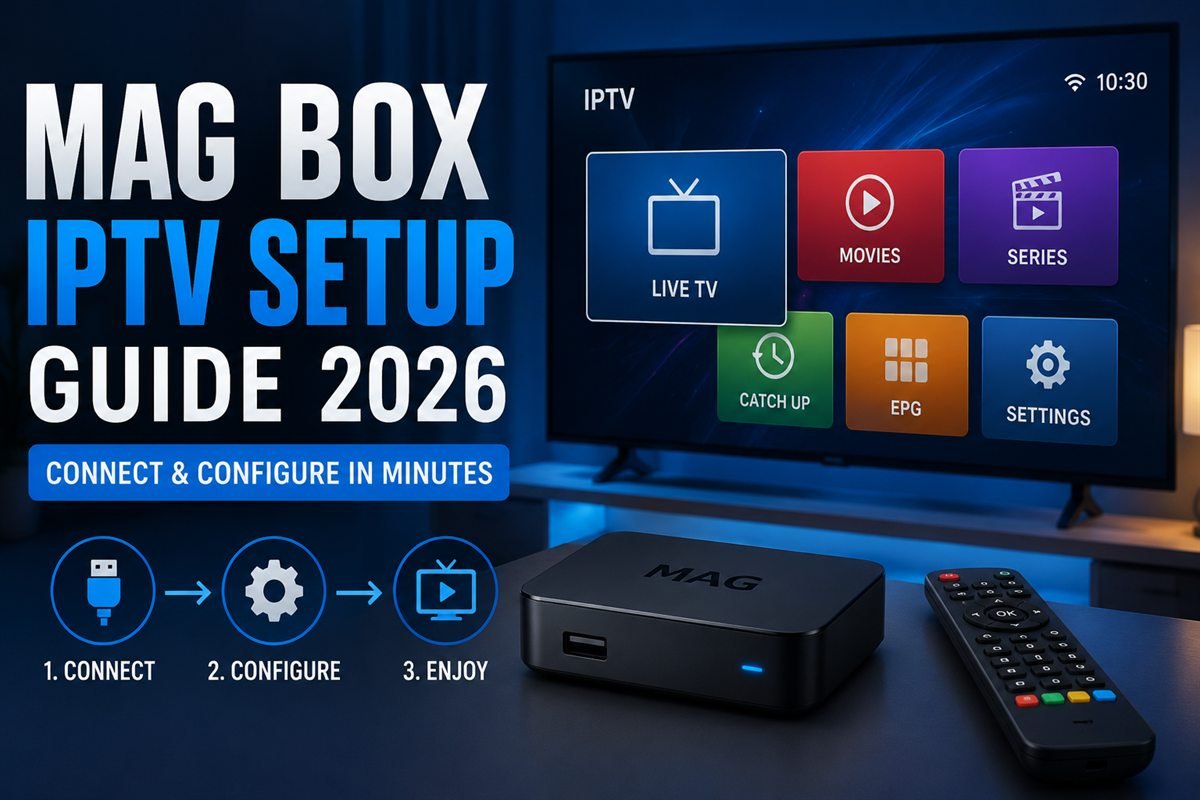
A MAG box IPTV setup works differently from every other streaming device, and that trips up most first-time owners. There is no app store, no APK to sideload and no username field on the home screen. A MAG box authenticates by its MAC address against a portal URL your provider issues, and until that pairing is done the box shows an empty screen no matter how many times you reboot it.
This guide covers the whole process on current Infomir hardware: identifying which model you own and what it can actually decode, entering the portal correctly, wiring the network so playback holds up, configuring the EPG, loading an M3U playlist instead of a portal if you prefer, updating firmware safely, and fixing the handful of errors that account for most MAG problems.
Key takeaways
- MAG boxes authenticate by MAC address, not username and password — your provider must whitelist it before anything plays.
- Every Infomir MAC begins 00:1A:79. If yours doesn't, you have a clone, and portals frequently reject them.
- Only the 4xx and 5xx series decode 4K HEVC. A MAG 322 or 324 will never output 4K, regardless of your subscription.
- Use Ethernet. Built-in Wi-Fi is the weakest part of most MAG boxes and causes the majority of buffering complaints.
- "Portal not available" is almost always a typo, a DNS problem, or a MAC that hasn't been activated — in that order.
What's inside
- What a MAG box actually is
- Which model you have, and what it supports
- What you need before you start
- Setting up the portal, step by step
- Connecting to your network properly
- Getting the picture right
- EPG, favourites and parental controls
- Using an M3U playlist instead of a portal
- Keeping firmware current — carefully
- Troubleshooting the common failures
- MAG box versus the alternatives
- Frequently asked questions
What a MAG Box Actually Is
MAG is a line of set-top boxes from Infomir, a Ukrainian manufacturer. They are not Android devices. They run a Linux-based system built around a single job: receiving a managed IPTV service and playing it reliably.
Portal-based, not app-based
Instead of installing a player, the box loads a portal — a middleware interface hosted by your provider, usually Stalker or Ministra. The portal supplies the channel list, the guide, the VOD library and the interface itself. Your box is essentially a thin client displaying whatever the provider sends.
Why it authenticates by MAC address
Because the portal is tied to hardware rather than an account, the provider whitelists your box's MAC address on their panel. That is the entire login. It means no credentials to type on a remote, but also that the box is bound to one provider at a time, and that a provider must act before anything works.
Who a MAG box actually suits
- Households that want a television-like experience with a real remote and a channel grid
- Users who dislike app interfaces, sideloading and updates
- Anyone who wants a device that does one thing and keeps doing it
It suits you less if you want Netflix and YouTube on the same box, or the flexibility of swapping player apps. In that case an Android-based device covered in our player app comparison is the better fit.
Which MAG Model You Have, and What It Supports
Model number decides your ceiling. No subscription upgrades a box past its decoder.
| Model | Max output | HEVC / H.265 | Built-in Wi-Fi |
|---|---|---|---|
| MAG 250 / 254 / 256 | 1080p | No | USB dongle only |
| MAG 322 / 324 | 1080p | Limited | 322w1 model only |
| MAG 349 / 351 | 1080p / 4K | Yes | Selected models |
| MAG 424 / 424w3 | 4K 60fps | Yes | w3 models |
| MAG 524 / 524w3 | 4K 60fps | Yes | w3 models |
| MAG 540 / 544 | 4K HDR | Yes | w3 models |
Finding your model number
It is printed on the sticker underneath the box, next to the MAC address, and shown on screen under Settings → System Settings → System Information.
Spotting a cloned box
Genuine Infomir hardware uses MAC addresses beginning 00:1A:79. Clones ship with spoofed or duplicated addresses, and because portals key on the MAC, a duplicate can collide with another user and cause intermittent, unexplainable dropouts. Check the prefix before buying second-hand.
What "w1" and "w3" mean
The suffix indicates the wireless chipset. A plain model has no built-in Wi-Fi at all and needs Ethernet or a supported USB adapter. This catches out a lot of buyers who assume wireless is standard.
What You Need Before You Start
Gather these first — the setup takes about five minutes once you have them, and considerably longer if you don't.
The four things required
- Your box's MAC address — from the sticker or System Information
- A portal URL from your provider — typically ending
/c/or/stalker_portal/c/ - Your MAC whitelisted by the provider on their panel
- A wired network connection, or a supported USB Wi-Fi adapter
Reading the MAC address correctly
Navigate to Settings → System Settings → System Information. The MAC appears as six pairs separated by colons, for example 00:1A:79:4B:2C:8D. Copy it exactly — a transposed character means the portal will simply never authorise.
What a portal URL looks like
A portal address is a normal web URL, often in one of these shapes:
http://portal.example.com/c/http://example.com:8080/c/http://example.com/stalker_portal/c/
The trailing slash matters. So does the port number when one is specified.
Setting Up the Portal, Step by Step
Step 1 — Open the portal settings
From the main menu go to Settings → System Settings → Servers → Portals. Older firmware places this under Settings → Servers → Portals.
Step 2 — Name the portal
In Portal 1 name, type anything you like — this is only a label shown on the box.
Step 3 — Enter the portal URL
In Portal 1 URL, type the address exactly as supplied. Watch for three things that break it:
- A trailing space picked up from copy-paste
- A missing final slash
httpswhere the provider specifiedhttp, or the reverse
Step 4 — Save and restart the portal
Press OK to save, then exit to the main menu and choose Restart Portal. A full power cycle is not required, though it does no harm. The channel list should load within a few seconds.
Step 5 — Confirm playback
Open any channel. If the guide populates but nothing plays, the portal is reachable and the problem is downstream — usually the network or a stream the provider hasn't enabled. If the portal itself never loads, jump to troubleshooting.
Connecting to Your Network Properly
This is where most MAG complaints originate, and it is almost always fixable.
Why Ethernet matters more here than on other devices
The wireless chipsets in MAG boxes are modest compared to a current Fire TV or Formuler. On a congested 2.4GHz network they drop frames under load, which shows up as stuttering on live sport specifically — the highest-bitrate content you watch. A wired connection removes the variable entirely.
Bandwidth you actually need
| Stream | Typical bitrate | Recommended | Needs |
|---|---|---|---|
| SD | 1–2 Mbps | 4 Mbps | Any model |
| HD 1080p | 5–8 Mbps | 12 Mbps | Any model |
| 4K HEVC | 15–25 Mbps | 30 Mbps | 4xx / 5xx only |
| Live sport 50/60fps | 8–25 Mbps | 30 Mbps wired | Stable latency |
Setting a static IP or fixing DNS
If the portal loads intermittently, DNS is a common culprit. Under Settings → System Settings → Network, switch DNS from automatic to a manual entry such as 1.1.1.1 or 8.8.8.8, then restart the portal. This resolves a surprising share of "portal not available" reports.
If you must use Wi-Fi
Use the 5GHz band where the model supports it, place the box in line of sight of the router, and avoid powerline adapters for 4K — they rarely sustain the throughput. A deeper diagnosis order is in our buffering troubleshooting guide.
Getting the Picture Right
Match the output to your television
Under Settings → Video, set the HDMI resolution to your TV's native panel resolution — 1080p60 for most sets, 2160p60 for a 4K panel on a 4xx or 5xx box. Leaving it on "auto" occasionally negotiates a lower mode after a power cycle.
Aspect ratio and overscan
Set aspect to 16:9 and, if the edges of the interface are cut off, disable overscan on the television rather than compensating on the box. Most TVs hide this under a "Just Scan", "Screen Fit" or "1:1 pixel" setting.
Audio passthrough
If you use a soundbar or receiver, enable HDMI passthrough under audio settings so Dolby streams reach the amplifier untouched. Leaving the box to downmix loses surround on channels that carry it.
EPG, Favourites and Parental Controls
How the guide arrives
On a portal setup the EPG is delivered by the provider, so there is no XMLTV URL to configure. Press the EPG key on the remote to open the grid. If the guide is blank, it is a provider-side issue, not a box setting.
Building a favourites list
Highlight a channel, press F2 or the favourites key depending on remote revision, and it moves into your favourites group. Toggle between all channels and favourites with the same key. On a lineup of thousands of channels this is the single change that makes the box pleasant to use.
Locking channels
Parental control lives under Settings → System Settings → Parental Control. Set a PIN, then mark individual channels as protected. The default PIN on most firmware is 0000 — change it.
Using an M3U Playlist Instead of a Portal
Not every provider issues a portal. Many supply an M3U link instead, and MAG hardware can handle it.
When you'd choose M3U
- Your provider offers only an M3U or Xtream Codes line
- You want to run more than one source on the same box
- You are testing a service before asking for a MAC whitelist
Loading a playlist
Use the built-in media portal, or point Portal 1 at a playlist-compatible interface if your provider supplies one. Structure, tagging and troubleshooting of playlists are covered in our M3U playlist guide.
The trade-off
M3U gives flexibility but usually loses the polished guide, catch-up and VOD sections a portal provides. If your provider supports both, the portal is generally the better experience on MAG hardware.
Keeping Firmware Current — Carefully
Update over the internet
Go to Settings → Software Update → Check for updates. If one is offered, let it complete without cutting power. An interrupted update is the most reliable way to brick a MAG box.
Update by USB
For older models, download the image for your exact model from Infomir, place it on a FAT32 USB stick, insert it and boot while holding the menu key. Installing an image for the wrong model is the second most reliable way to brick a box — check the model number twice.
When not to update
If the box is working and your provider hasn't asked you to update, there is little to gain. Newer firmware occasionally changes portal behaviour and some providers lag behind.
Troubleshooting the Common Failures
| Symptom | Most likely cause | Fix |
|---|---|---|
| "Portal not available" | URL typo or DNS | Re-enter the URL, set DNS to 1.1.1.1, restart portal |
| Portal loads, no channels | MAC not whitelisted | Send the exact MAC to your provider |
| "No link for the channel" | Stream offline or not in your package | Try other channels to confirm scope |
| Constant buffering | Wi-Fi throughput | Switch to Ethernet before anything else |
| Freezes on one channel only | Source-side issue | Report the channel; nothing on the box fixes it |
| Boot loop after update | Wrong or interrupted image | Reflash the correct image by USB |
| Blank screen, box powered | Resolution mismatch | Cycle output with the remote resolution key |
Work in this order
- Confirm the box has an IP address under Network
- Confirm the portal URL character by character
- Swap Wi-Fi for Ethernet
- Set manual DNS and restart the portal
- Only then contact your provider — with the MAC and the exact on-screen error
What your provider actually needs from you
A useful support message contains the model number, the full MAC address, the exact error text, and whether the failure affects one channel or all of them. Sending "it doesn't work" guarantees a slow resolution.
MAG Box Versus the Alternatives
| Device | Approx. price | 4K HEVC | Best for |
|---|---|---|---|
| MAG 524 / 544 | $100–$150 | Yes | Set-and-forget portal viewing |
| Fire TV Stick 4K Max | ~$55 | Yes | Flexibility and app choice |
| Formuler Z11 | $140–$180 | Yes | Portal experience with Android apps |
| Android box + STB Emu | $40–$90 | Model dependent | MAG-style portal on cheaper hardware |
When a MAG box is still the right answer
If the household wants a channel grid and a remote with no learning curve, and the provider supports portals properly, MAG remains hard to beat on simplicity. Nothing else boots straight into live TV as reliably.
When to choose something else
Choose Android hardware if you want streaming apps alongside IPTV, if you switch providers often, or if you want to run a modern player interface. Formuler Z11 sits between the two, and STB Emu reproduces the MAG portal experience on an Android device you may already own.
Putting It All Together
A working MAG box setup comes down to four things: the right model for the resolution you want, a MAC address your provider has whitelisted, a portal URL entered exactly as issued, and a wired connection. Get those right and the box is among the most dependable ways to watch IPTV; get any one wrong and it appears completely dead, which is why so many are returned unnecessarily.
If you still need a service to point it at, confirm the current MAG portal support and plan terms before ordering. Review the subscription checklist or read the wider installation guide for other devices in the house.
Need a portal for your MAG box?
Send your MAC address after ordering and the portal is configured for you. See plans from $15 →
Frequently Asked Questions
Where do I find the MAC address on a MAG box?
Two places: the sticker on the underside of the box, and on screen under Settings → System Settings → System Information. It appears as six pairs separated by colons, and every genuine Infomir device begins 00:1A:79.
Why does my MAG box say "Portal not available"?
In order of likelihood: a typo or trailing space in the portal URL, a DNS problem, or a MAC that hasn't been activated yet. Re-enter the URL character by character, set DNS manually to 1.1.1.1, restart the portal, and only then contact your provider.
Can a MAG 322 play 4K channels?
No. The 322 and 324 are 1080p devices and no subscription or setting changes that. For 4K you need a 4xx or 5xx series box, such as the MAG 424, 524 or 544.
Do I need Ethernet, or is Wi-Fi good enough?
Ethernet is strongly preferred. Built-in wireless on MAG hardware is weaker than on current streaming sticks, and it shows up as stuttering on high-bitrate live sport. If you must use Wi-Fi, use 5GHz and keep the box near the router.
Can I use one MAG box with two different providers?
Not simultaneously in a practical sense. The box supports multiple portal slots, but each provider whitelists your MAC on their own panel, and switching means changing the active portal and restarting.
What happens if I move house or change internet provider?
Nothing on the box needs changing. Authentication is by MAC address, not IP, so the box keeps working once it is back on a network. You may need to re-enter Wi-Fi credentials.
Is it safe to update MAG firmware?
Usually, provided you use the image for your exact model and never interrupt the power. If the box works and your provider hasn't requested an update, there is little to gain from applying one.
What does the "w1" or "w3" suffix mean?
It identifies the built-in wireless chipset. A model without a suffix has no internal Wi-Fi and needs Ethernet or a supported USB adapter — a common surprise for buyers who assume wireless is standard.
My guide is empty — how do I fix the EPG?
On a portal setup the guide comes from your provider, so there is no setting on the box to correct. A blank EPG is a provider-side issue and should be reported to them.
Is a MAG box legal to own and use?
Yes. A MAG box is ordinary streaming hardware, in the same category as any set-top box. What matters is whether the service you connect it to holds distribution rights for the content it carries. Use a provider that licenses its content, and check the rules that apply where you live.
Is a MAG box still worth buying in 2026?
For portal-based viewing with a traditional remote, yes — nothing boots into live TV more reliably. If you want streaming apps on the same device or you change providers often, Android hardware is the more sensible purchase.
Menu paths vary slightly between firmware revisions, so a setting may sit one level up or down from where it is described here. Use IPTV services that hold proper distribution rights for the content they carry, and check the regulations that apply in your own jurisdiction.
Related guides
- STB Emu Pro Setup — run a MAG-style portal on an Android device
- Formuler Z11 Setup — portal viewing with Android apps alongside
- M3U Playlist Guide — using a playlist instead of a portal
- Fix IPTV Buffering — the diagnosis order that actually works
- Best IPTV Player Apps — the alternatives to portal hardware
- Android TV Setup — setting up IPTV on Android hardware
- What Is IPTV? — how the technology works, in plain language
Related IPTV Guides
Continue with the guide that matches your next setup or buying decision:
#mag box iptv #mag iptv setup 2026 #mag box setup guide #iptv mag 322 #mag 524 iptv setup
Related IPTV Guides
- IPTV on Smart TV Without a Stick: Samsung, LG & Sony Guide 2026 — Can you get IPTV directly on a Samsung, LG, or Sony Smart TV without a Firestick? Yes — here are 4 working methods for smart TVs in 2026.
- STBEmu Pro IPTV Setup Guide for Firestick & Android TV 2026 — STBEmu Pro emulates a MAG STB box on Firestick and Android. Here's the complete STBEmu Pro setup guide for IPTV in 2026 — portal URL, MAC, and configuration.
- Formuler Z11 IPTV Setup 2026: MYTVOnline Guide — A Formuler Z11 and MYTVOnline setup guide covering device preparation, portal or playlist selection, private account entry, EPG configuration, remote controls, and troubleshooting.