Setup Guides
Formuler Z11 IPTV Setup 2026: MYTVOnline Guide
A Formuler Z11 and MYTVOnline setup guide covering device preparation, portal or playlist selection, private account entry, EPG configuration, remote controls, and troubleshooting.
By Marcus Reid · Published · Updated · 7 min read
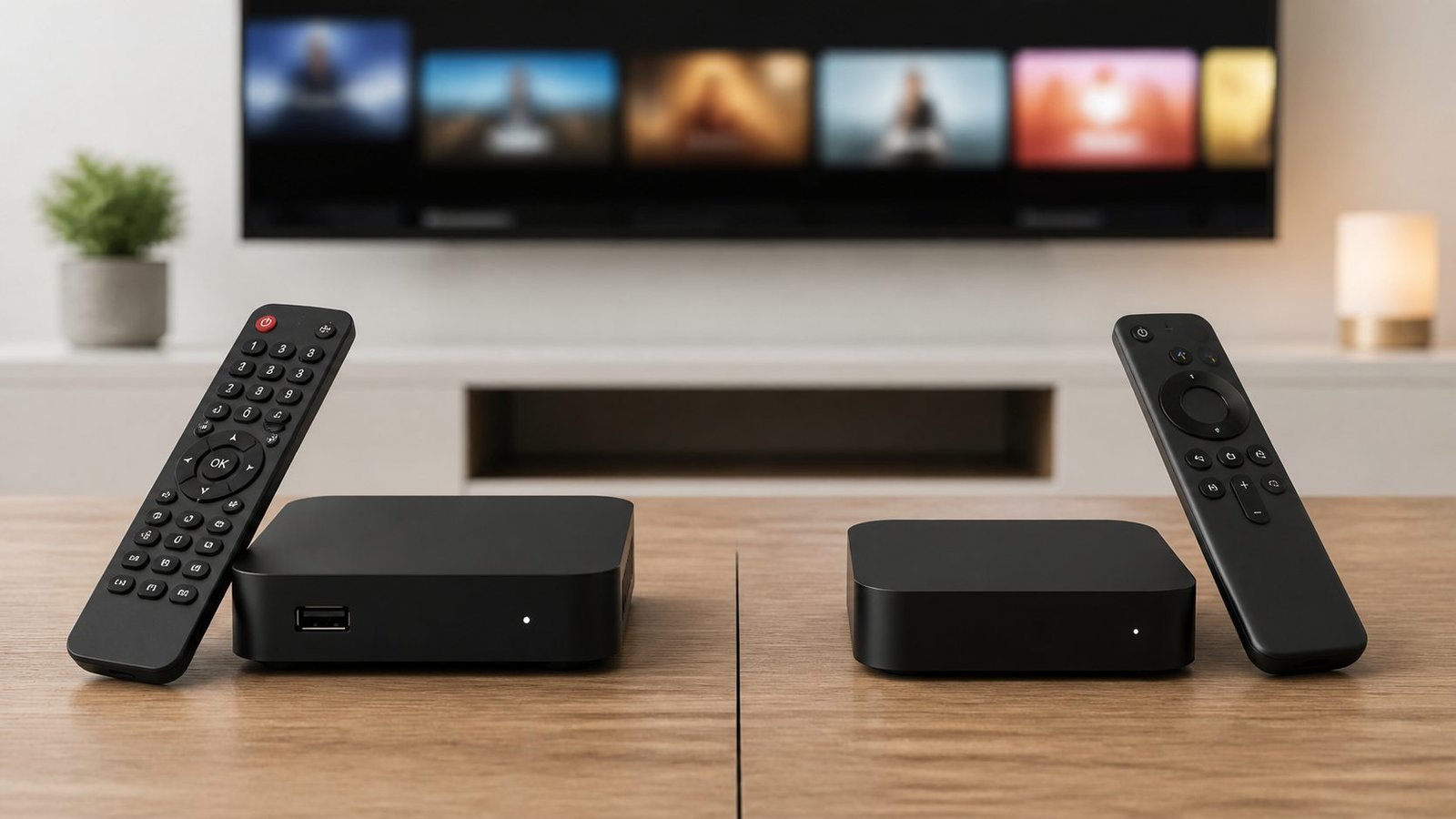
Formuler Z11 devices combine Android-based hardware with the manufacturer's MYTVOnline viewing application. A successful setup depends on the exact Z11 model, current firmware and MYTVOnline version, the connection method supplied by an authorized media service, and a stable home network. The player interface does not include channels or grant content rights.
Confirm the Formuler Model and Account Format
Record the full model name from the device settings rather than assuming instructions for every Formuler box are identical. Check the installed MYTVOnline version, available storage, display resolution, audio output, device time zone, and whether Ethernet or Wi-Fi will be used.
Ask the authorized service which connection type it supports. Common workflows can involve a portal, an M3U playlist, or a server address with username and password. Do not convert one format into another through an unverified website. Start with the Formuler compatibility checklist.
Connect, Update and Prepare the Z11
Connect the box to the television by HDMI, attach power, and complete the Formuler setup wizard. Install firmware and MYTVOnline updates only through official Formuler controls. Confirm the clock and time zone before loading guide data, then restart after a major update.
Use Ethernet when the box is near the router because it creates a stable reference without wireless interference. Wi-Fi can still work when coverage is strong and household traffic is controlled. The Wi-Fi versus Ethernet guide explains how to compare them fairly.
Add the Service Through the Matching Connection Type
| Connection method | Information normally required | Privacy precaution |
|---|---|---|
| Portal | Verified portal address and any supported device registration | Keep the portal and device identifier private |
| M3U playlist | Complete authorized playlist URL | Treat the full URL like a password |
| Server credentials | Server address, username, and password | Enter details only inside the verified application |
Open MYTVOnline, create a connection, and select the method that matches the provider's instructions. Enter the complete details without leading or trailing spaces and use a profile name that reveals no credentials. Allow the first synchronization to finish before closing the application.
Use the M3U guide or server-credential guide for format-specific checks. Never publish a portal, playlist URL, password, QR code, MAC-like identifier, or account screenshot.
Configure the EPG, Favorites and Remote
After the connection loads, confirm the guide's last refresh and compare program times with the device clock. Adjust an EPG offset only after the time zone and source data are correct. Create a small favorites group and test live navigation, captions, audio tracks, aspect ratio, channel history, and parental controls.
Record working non-secret settings before changing decoder or buffer options. Test several authorized items rather than judging the complete setup from one source. For missing guide data, use the EPG troubleshooting checklist.
Troubleshoot Formuler Login and Playback
If the connection is rejected, verify the selected method, protocol, address, capitalization, account status, and simultaneous-connection allowance. If categories load but playback fails, test another authorized item and determine whether the symptom affects video, audio, or both.
Restart MYTVOnline and the box before deleting the profile. Check free storage, updates, temperature, HDMI output, and the network path. Change only one decoder or display option at a time. Continue with the main troubleshooting center or compare dedicated hardware in the MAG versus Android TV box guide.
Frequently Asked Questions
Does MYTVOnline include an IPTV subscription?
No. MYTVOnline is player software for compatible Formuler hardware. Authorized media access must be supplied separately in a supported format.
Should I choose portal, M3U, or server credentials?
Choose the exact method documented by the service. These formats are not automatically interchangeable, and entering details in the wrong screen causes avoidable errors.
Why is the Formuler guide empty?
Check device time, time zone, EPG source, last refresh, and account mapping. Guide data can fail even while live playback remains available.
Why does the account work elsewhere but not on the Z11?
Verify the selected connection type, complete address, device registration if applicable, application version, and whether another device is using the connection allowance.
Is Ethernet required for Formuler?
No, but Ethernet removes Wi-Fi interference from the diagnosis. Stable Wi-Fi is suitable when signal quality and household congestion are acceptable.
What should I redact from a support screenshot?
Hide portal and playlist addresses, usernames, passwords, device identifiers, QR codes, order information, and payment details while leaving the error message visible.
#formuler z11 iptv #formuler z11 pro max setup #formuler iptv setup 2026 #best iptv box 2026 #mytvonline 2 iptv
Related IPTV Guides
- IPTV Smarters Pro Guide 2026: Safe Setup & Fixes — A current Smarters setup guide covering verified app selection, secure account entry, guide configuration, household controls, and troubleshooting.
- MAG Box vs Android TV Box: Which Fits a US Household? — Compare MAG and Android TV boxes by portal support, app flexibility, remote experience, networking, maintenance, and total ownership cost.
- MAG Box Network & EPG Optimization Guide for US Homes — Improve MAG box network stability and diagnose slow, missing, or incorrect EPG data using controlled Ethernet, Wi-Fi, timing, and playback tests.