Guides
4K IPTV Guide 2026: Devices, Network, HDR & Playback
Check the source-to-screen video chain, distinguish resolution from frame rate, and estimate sustained bandwidth from the streams your household actually uses.
By Marcus Reid · Published · Updated · 4 min read
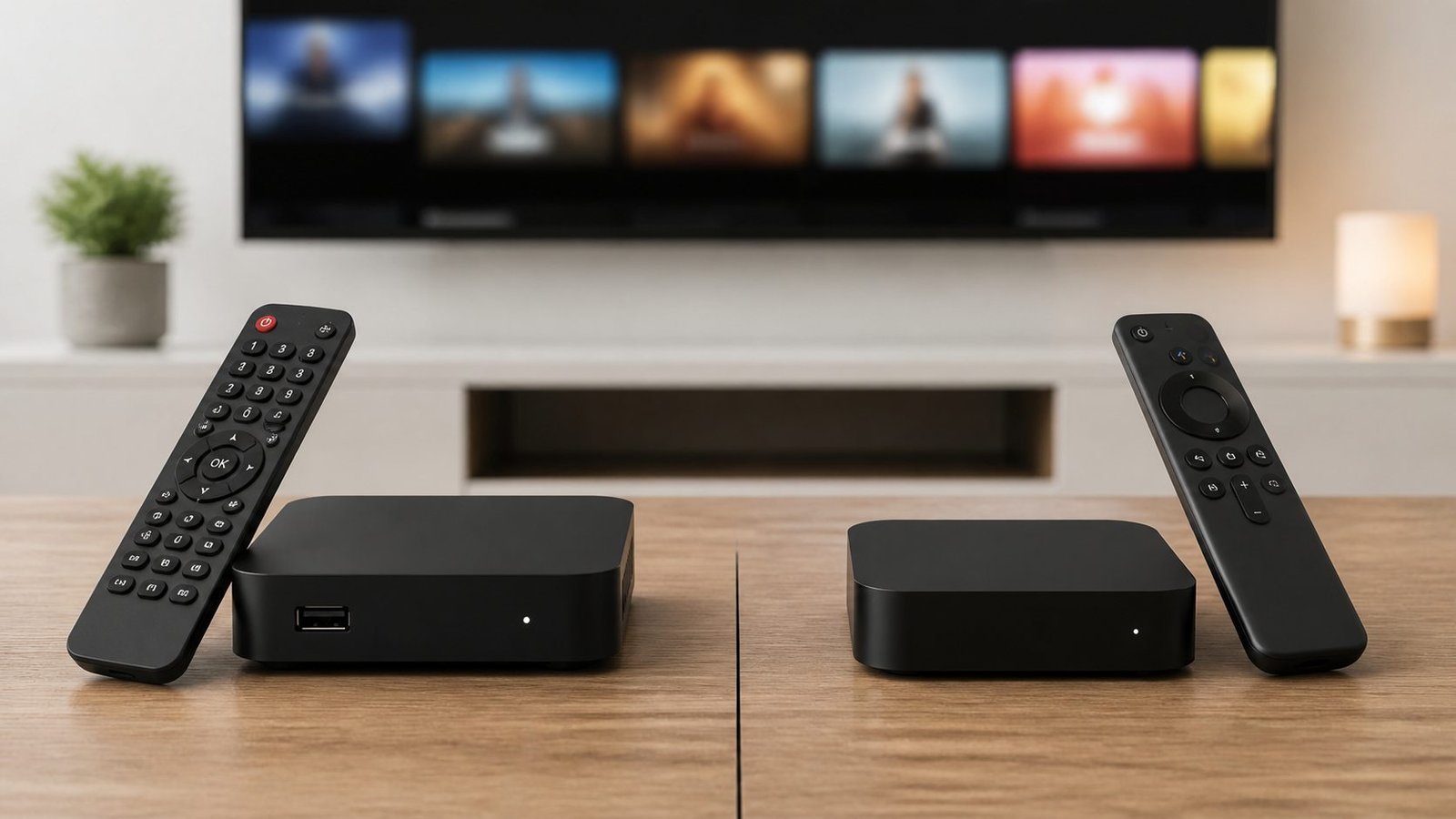
4K IPTV requires more than a 4K badge: the source, subscription, player, decoder, display connection and television must all support the actual format. A 4K-capable device cannot turn a lower-resolution source into native 4K, and internet speed alone does not establish picture quality.
Verify the Source Before Changing Hardware
Confirm that the authorized broadcaster or media owner offers the selected program in 4K for the viewer's location and plan. Check whether the source uses HDR, a particular frame rate, or a codec the intended player and device support. Upscaled HD can look good but is not the same as a native 4K source.
| Layer | What to verify | Typical symptom when mismatched |
|---|---|---|
| Source | Actual resolution, rights, plan, HDR, and frame rate | The title never switches to 4K |
| Device | Codec and hardware-decoding support | Stutter, black video, or app fallback |
| HDMI/display | Compatible port, cable, input mode, and television setting | Limited resolution, HDR, or refresh rate |
| Network | Sustained delivery at the playback device | Quality drops or repeated buffering |
Check the Television, Player and Device
Identify the exact television and streaming-device model, operating-system version, supported codecs, HDR formats, output resolution, and app availability. Use hardware decoding where the verified player and device support it, but keep a record of the working default before changing playback options.
Review platform-specific requirements in the device hub and compatibility checklist. Storage pressure, heat, outdated software, and unsupported generic Android boxes can affect high-resolution playback.
Configure HDMI, HDR and Display Output
Use a suitable HDMI port and cable, enable the television's enhanced input mode when its manual requires it, and begin with automatic output settings. Confirm whether the source and display both support the selected HDR format. If the picture is black, washed out, or unstable, return to a broadly supported automatic mode before testing one setting at a time.
Do not force 4K output when the app is supplying a lower-resolution source; the device or television will upscale it. Use the black-screen checklist for decoder and output failures.
Test Sustained Network Delivery
Measure at the playback device during normal viewing hours with household traffic active. Ethernet provides a useful reference for fixed equipment. On Wi-Fi, inspect band, distance, walls, interference, router placement, mesh roaming, and simultaneous uploads rather than relying on one short speed result.
The internet consistency guide explains bitrate, overhead, concurrent use, and packet loss. Compare Ethernet and wireless conditions with the network checklist.
Diagnose 4K Buffering and Picture Problems
First test another authorized 4K title and a lower-resolution version of the same or similar content. If only one title fails, investigate the source. If every 4K item fails but HD works, inspect device decoding, output settings, heat, storage, and sustained network delivery.
Restart the app and device before clearing data. Record resolution, HDR state, device, app version, connection type, and the exact symptom. Use the buffering diagnosis and troubleshooting center.
Check the full video chain
| Layer | Check |
|---|---|
| Source | Native resolution, frame rate and codec |
| Account | Whether the required quality is included |
| Player and device | Decoder support for that codec and resolution |
| Display connection | Suitable port, cable and output settings |
| Television | Supported resolution and HDR format |
Estimate bandwidth from bitrate, not the 4K label
Use the source or player's reported bitrate when available. As a planning example, two 20 Mbps streams already require 40 Mbps before allowing for overhead and other household traffic. The example is not a universal 4K requirement. A lower-resolution reference stream helps distinguish bandwidth pressure from decoding failure.
Frequently asked questions
Can a 4K television display every 4K stream?
Not necessarily. The input device, codec, HDR format and connection also need to be supported.
Why is 4K video smooth but sports motion looks poor?
Resolution and frame rate are different. Check the source frame rate and display output rather than increasing resolution alone.
Does a 4K badge prove a service supplies native 4K?
No. Look for source information and test the actual program where a permitted trial is available.
Sources and further reading
Continue with the relevant guide
Review current plans and household setup options on IPTV USA plans and setup information.
#4k iptv #4k iptv service 2026 #4k iptv channels #best 4k iptv #8k iptv streaming
Related IPTV Guides
- How to Watch NFL Games in 2026: TV, Streaming & Device Guide — Find the official viewing option for an NFL matchup, distinguish local and out-of-market coverage, and prepare your account and television before kickoff.
- How to Watch the Premier League in the USA in 2026–27 — Confirm the US broadcaster for your Premier League fixture, check live versus replay access, and avoid kickoff-time and daylight-saving mistakes.
- IPTV vs Sling TV 2026: Plans, Channels & Devices — Compare the selected Sling package with another television offer using required channels, local availability, concurrent screens, recording and the complete recurring total.